

First, you need to open Facebook or your Facebook Business Manager.
You can do this by visiting the links provided.
Ads manager
https://adsmanager.facebook.com/adsmanager/manage/campaigns
Business Manager
https://business.facebook.com/latest/settings/business_users
If Business Manager or Business Suite opens, continue with the next steps of the instructions.
If Business Manager or Business Suite does not open, click Ad Account in the left-hand menu.
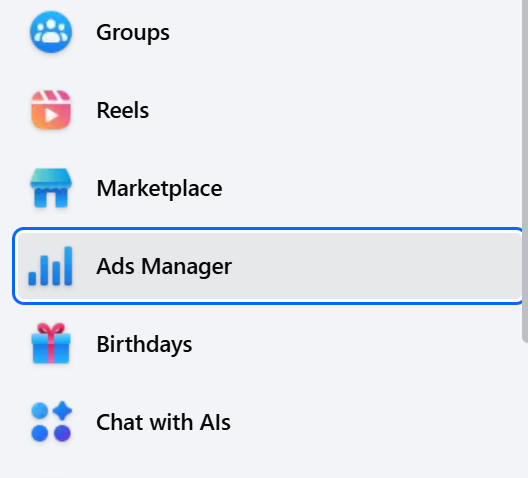
Your ad account will open. If you do not have one yet, Meta will prompt you to create it. Please create the ad account.
Next, in the lower left-hand corner of the menu, click the gear icon labeled “Business Settings.”
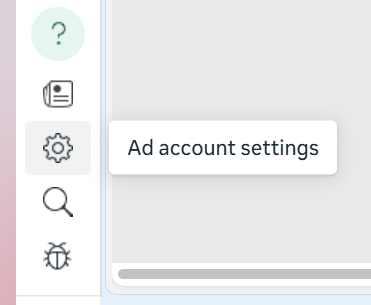
Business Suite or Business Manager will open. From there, go to Users → People.
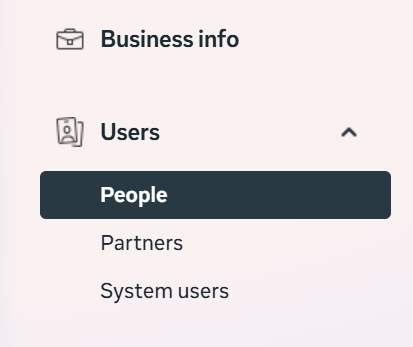
On the right side of the screen, you will see a list of people who already have access to your account, along with their roles and permissions. To invite a new user, click the “Invite People” button on the right side of the screen.
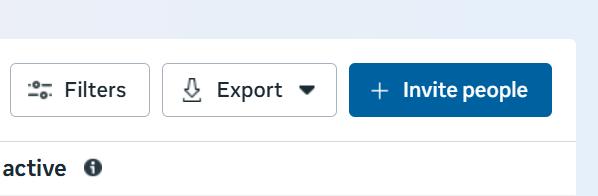
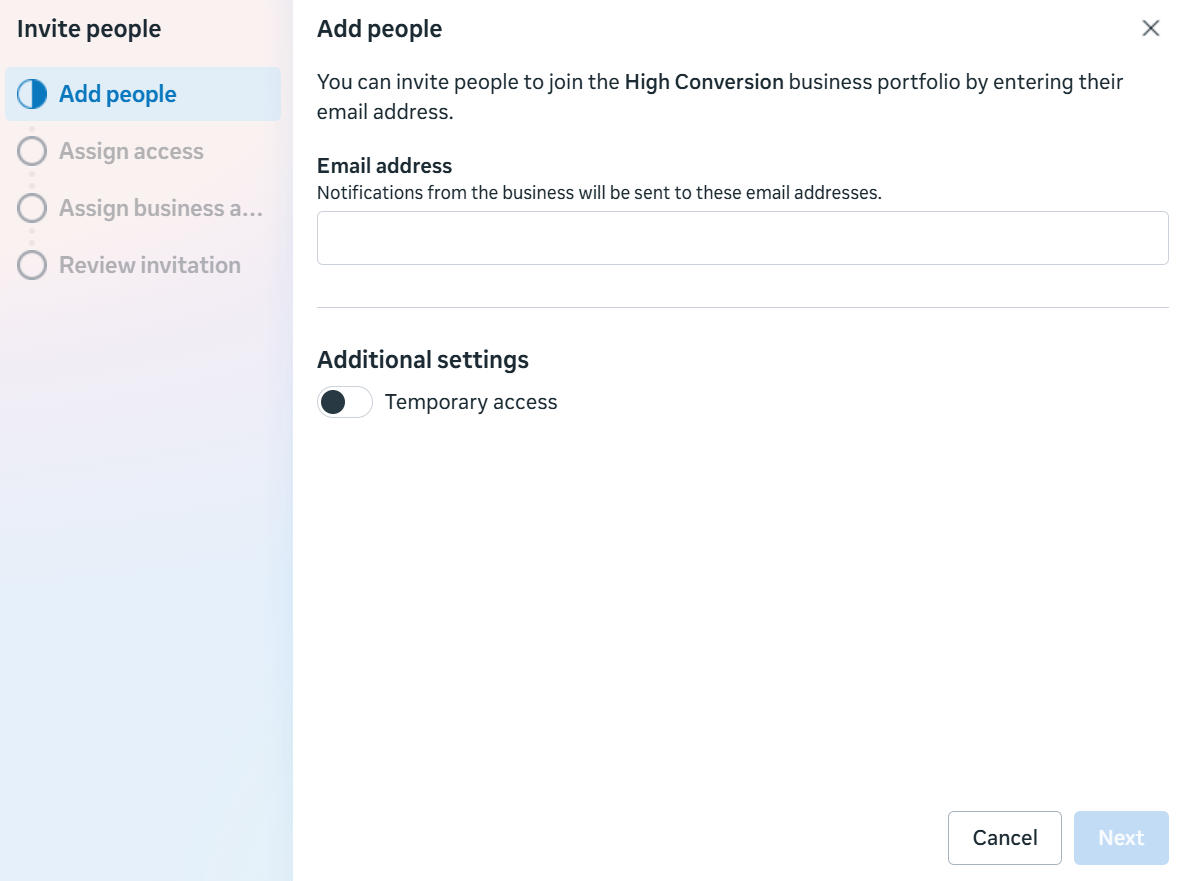
In the window that opens, enter the email address of the user you want to grant access to.
In our case, please send access to info@crmmagnetics.com
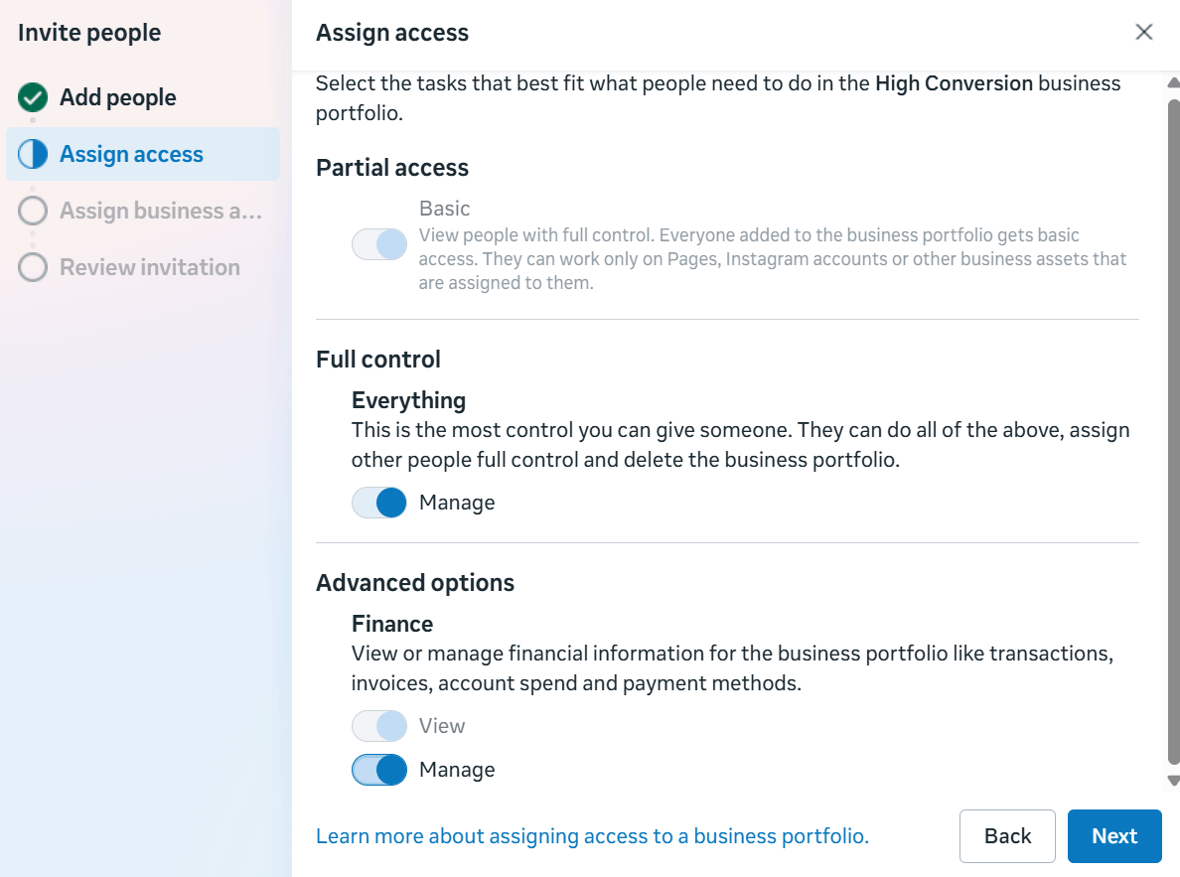
In the next step, select the access level.
For an advertising manager or agency, this should be full access, including financial management permissions.
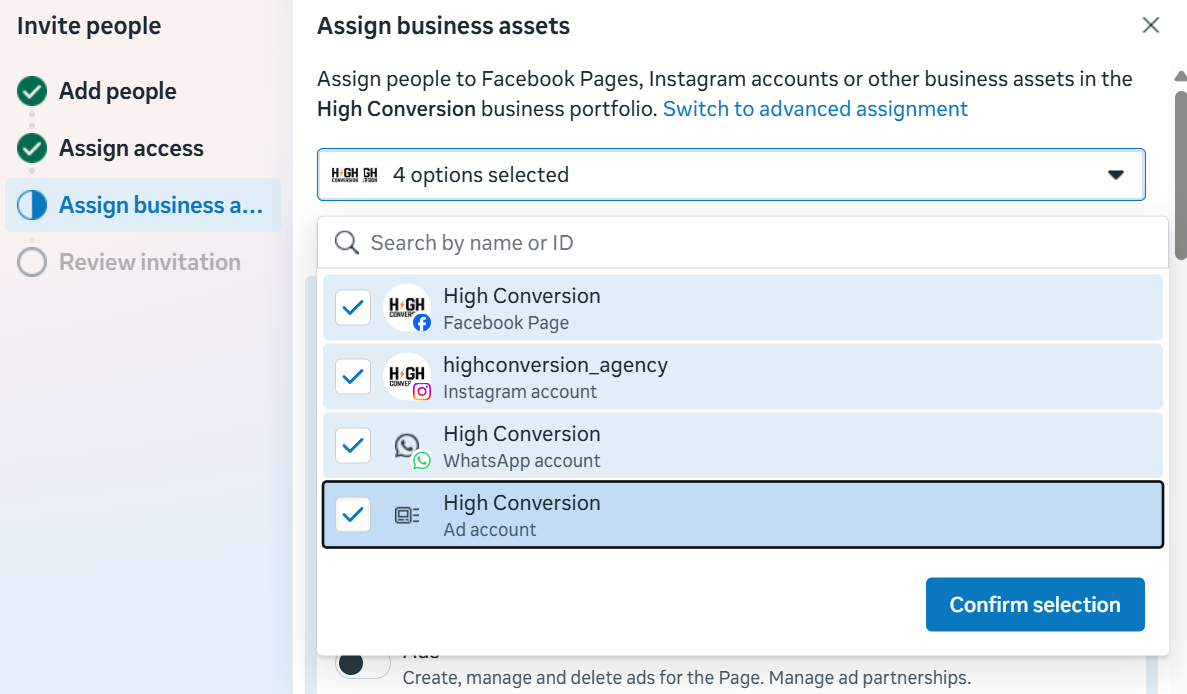
In the next step, select which assets the user will have access to.
Be sure to select all assets in your Business Manager.
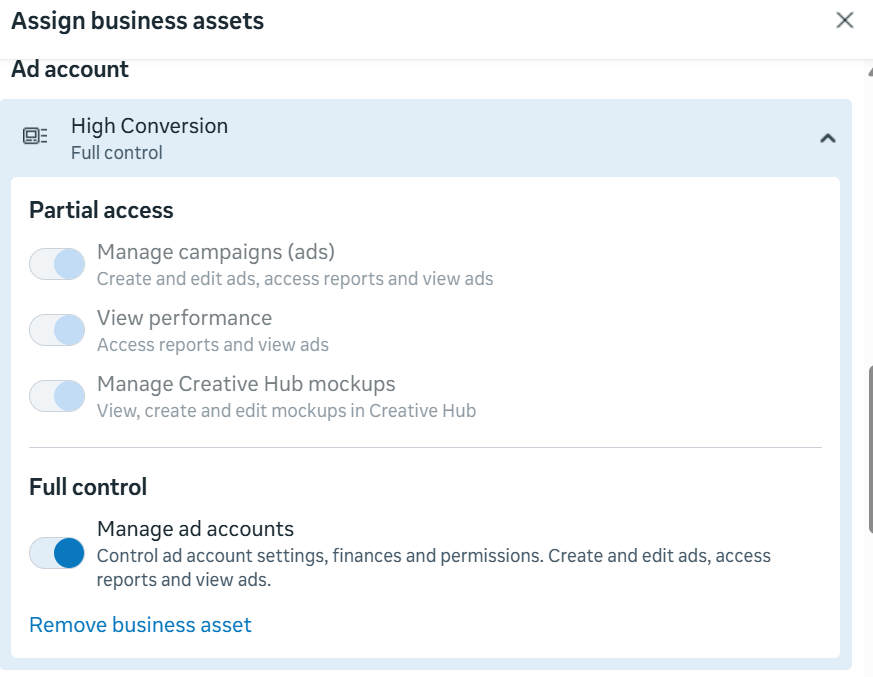
Below that, choose the level of access for each asset.
Please select full access.
In the final step, review the permissions you are granting.
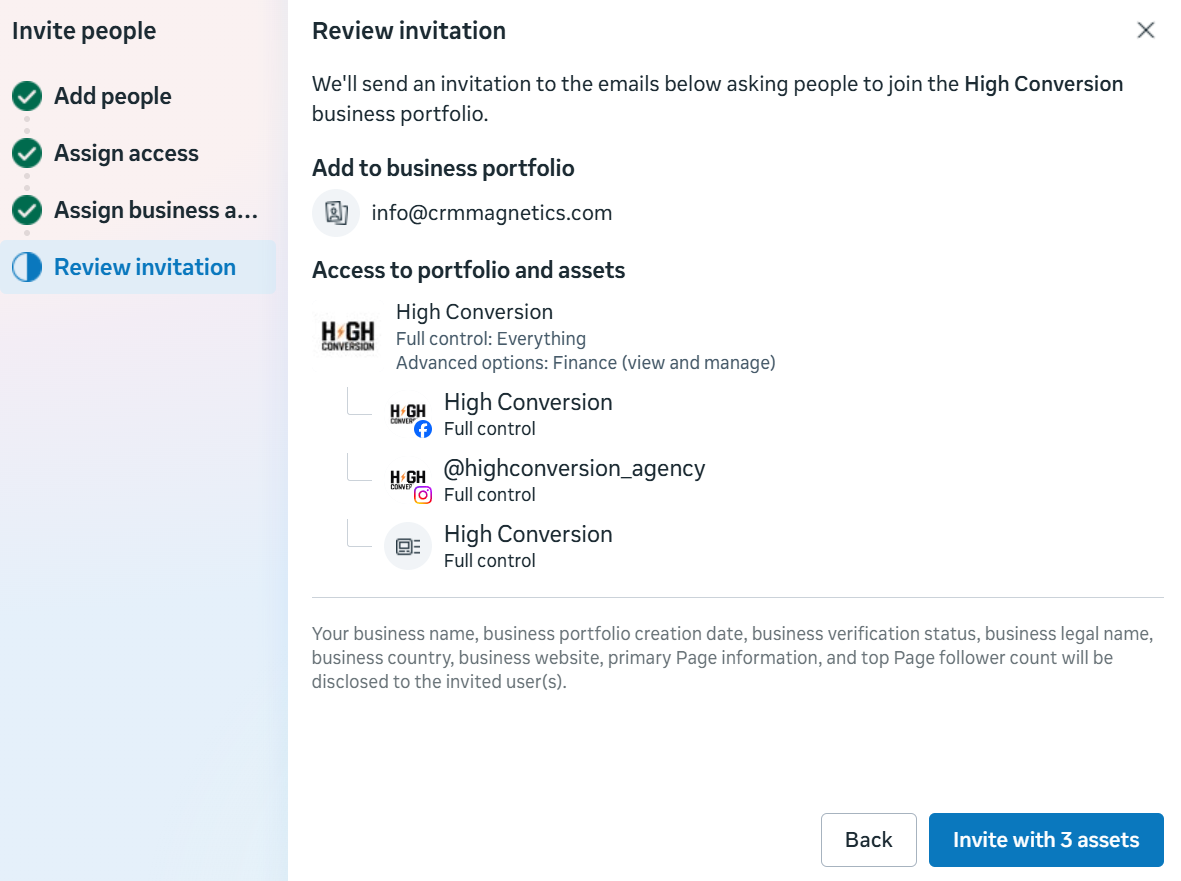
If everything looks correct, click Send Invitation, and the access request will be sent to the user’s email address.