


- March 18 2026
- Nikias Kray
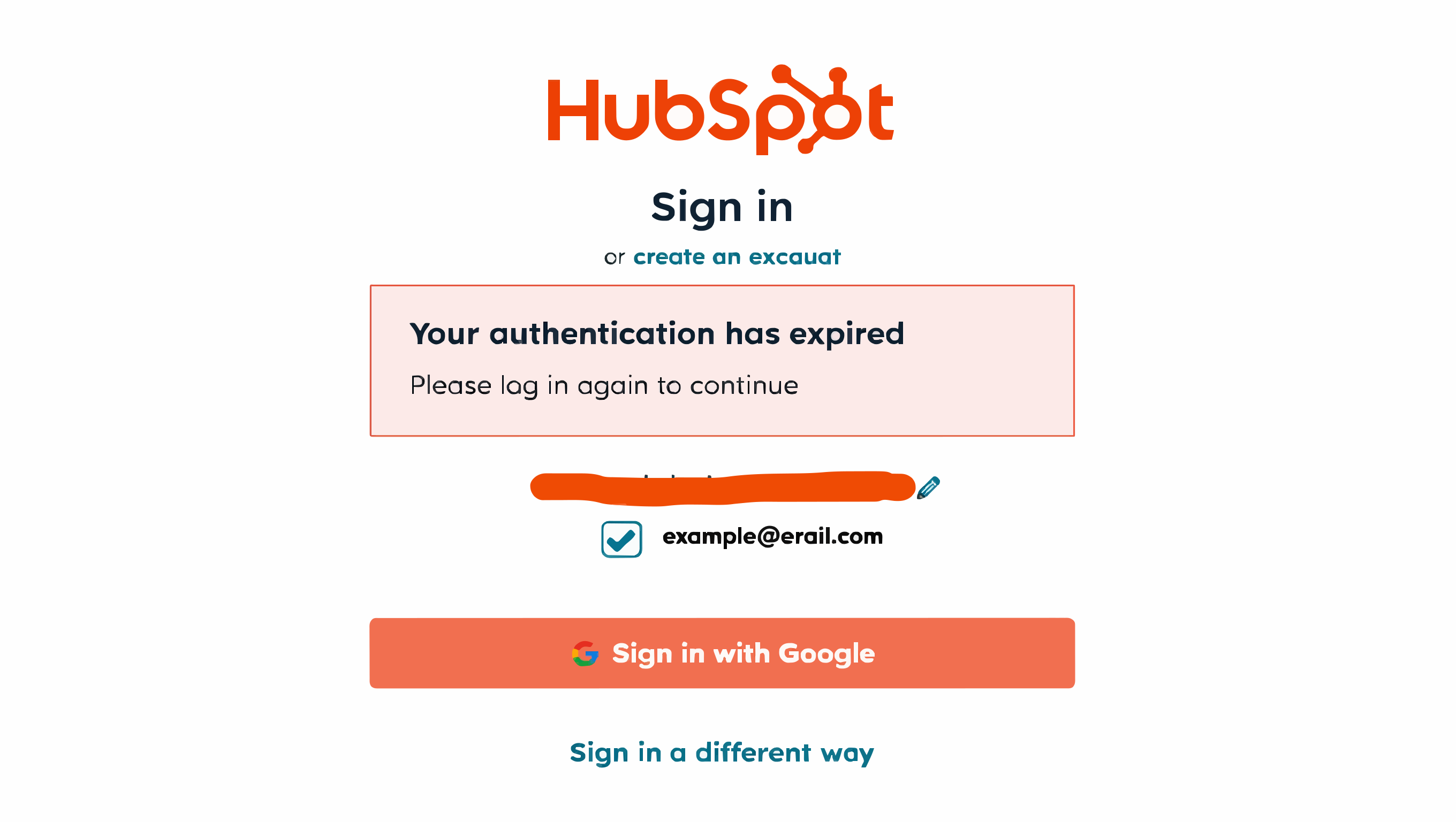
If you are using HubSpot as your main platform for CRM, marketing, sales, or customer service, the HubSpot login page is likely one of the places you visit every day. Seamless access to your HubSpot account ensures that you can manage contacts, track deals, create campaigns, analyze performance, communicate with customers, and keep your business operations running efficiently. This guide explains everything you need to know about logging into HubSpot, including how to access your account, how to troubleshoot login problems, how to keep your account secure, and how to make your HubSpot experience smoother and more productive.
HubSpot Login Methods at a Glance
|
Login Method |
Best For |
Security Level |
Requires Password |
|
Email & Password |
Individual users |
Medium |
Yes |
|
Sign in with Google |
Google Workspace users |
Medium–High |
No |
|
Single Sign-On (SSO) |
Enterprises & large teams |
High |
No (uses corporate ID) |
|
Two-Factor Authentication (2FA) |
All users (recommended) |
Very High |
Yes + OTP code |
|
Biometric (Mobile App) |
Mobile users |
High |
No (fingerprint/face) |
How the HubSpot Login Process Works
The HubSpot login process is designed to be simple and user‑friendly. Whether you are logging in from a browser, the mobile app, or a partner portal, HubSpot provides multiple ways to access your workspace safely. Most users sign in using their email and password, but HubSpot also supports Single Sign‑On (SSO), Google login, and two-factor authentication (2FA) to enhance security. No matter which method you use, the most important thing is to ensure you access the correct login page and follow best practices to protect your data.
When you visit the official HubSpot login page, the platform will ask you for the email associated with your HubSpot account. This is typically the email you used during signup or the one your administrator assigned to you. Once you provide the correct email, you will be prompted to enter your password or select an alternative login option. If you have connected your HubSpot account with Google, you can use the "Sign in with Google" option to log in instantly without entering a password. This is convenient for users who prefer simplified account access or who are already signed into their Google account in the browser.
Single Sign-On (SSO) for Teams and Enterprises
Many organizations that use HubSpot, especially larger companies, may have Single Sign‑On (SSO) enabled. If SSO is configured, your company may require you to log in using corporate identity credentials, such as Microsoft Azure AD or another enterprise authentication service. In this case, you will be redirected from the HubSpot login page to the SSO provider's login environment. Once authenticated, you are automatically taken into your HubSpot dashboard. This provides additional security while simplifying the login process for teams and enterprises.
Two-Factor Authentication (2FA): An Extra Layer of Security
HubSpot also strongly encourages the use of two-factor authentication. When enabled, 2FA requires you to verify your identity using a temporary security code sent to your mobile device, generated by an authentication app, or delivered via SMS. This extra layer of protection helps secure your HubSpot account against unauthorized access, especially if someone gains access to your password. If you attempt to log in from a new device or unexpected location, HubSpot may also prompt you for additional verification to protect your workspace.
Troubleshooting Common HubSpot Login Issues
Despite HubSpot's streamlined login process, users sometimes encounter issues signing into their accounts. Common problems include forgotten passwords, incorrect email addresses, disabled accounts, browser‑related errors, or issues with two-factor authentication codes.
- Forgot your password? Use the "Forgot my password" link on the HubSpot login page. HubSpot will send a password reset link to your registered email. If you don't see it, check your spam or junk folder.
- Browser issues? Clearing browser cookies, updating your browser, or using an incognito window often helps.
- Wrong email? Always make sure you're using the correct email address for the HubSpot portal you're trying to access.
- Account disabled? Contact your administrator to confirm your assigned email or to request a password reset. In some cases, administrators may deactivate accounts that are no longer in use, which can also prevent login.
What You Can Access After HubSpot Login
Once you successfully complete the HubSpot login process, you gain access to the full suite of HubSpot tools. Depending on your role and user permissions, you may have access to:
- CRM records — contacts, companies, deals, and tickets
- Marketing tools — email campaigns, landing pages, automation workflows
- Sales pipelines — deal tracking, sequences, meeting scheduling
- Customer service — ticketing systems, live chat, knowledge base
- Reporting dashboards — analytics, custom reports, revenue attribution
HubSpot updates the user experience regularly, and logging in ensures that you always see the most recent version of your portal with the latest functionality.
HubSpot Mobile App Login
HubSpot also provides a mobile app for both iOS and Android. Logging in through the mobile app works similarly to the browser version, allowing you to access contacts, communicate with leads, monitor activity, and track tasks from anywhere. If enabled, biometric authentication such as fingerprint or facial recognition can simplify the mobile login experience while maintaining security.
Best Practices for Secure HubSpot Login
For teams that frequently collaborate within HubSpot, maintaining secure login habits is essential:
- Never share login credentials — administrators should create separate user accounts with appropriate permissions.
- Use individual logins — HubSpot plans determine the number of available user seats, but providing each user with an individual login enhances security and accountability.
- Log out on shared devices — if you use public or shared devices, always log out after using HubSpot and avoid saving login credentials in shared browsers.
- Update your password regularly — especially if you use the same password across multiple platforms.
- Use a password manager — an effective way to create strong and unique passwords for your HubSpot account without needing to remember them manually.
If you ever lose access to your account due to a compromised password or suspicious activity, HubSpot's account protection systems may lock the account temporarily. Follow the automated steps or contact your account administrator to recover your login credentials. HubSpot also provides detailed documentation and support resources to help resolve login issues.
Quick Tips for Everyday HubSpot Login
Whether you are a marketer analyzing campaign performance, a sales representative managing leads, a support agent responding to tickets, or a business owner monitoring overall activity, accessing your account quickly and securely through the HubSpot login page is essential.
- 📌 Bookmark the official HubSpot login link in your browser to save time every day.
- 🔒 Always sign in through the authentic HubSpot domain to protect your data.
- 📱 Use the mobile app for on-the-go access with biometric login.
- 🔑 Enable 2FA for maximum account protection.
FAQ: HubSpot Login
Q1: Where is the official HubSpot login page?
The official HubSpot login page is located at app.hubspot.com. Always make sure you are using the correct domain to avoid phishing attempts.
Q2: I forgot my HubSpot password. What should I do?
Click the "Forgot my password" link on the HubSpot login page. A password reset link will be sent to your registered email address. If you don't receive it within a few minutes, check your spam or junk folder.
Q3: Can I log into HubSpot with my Google account?
Yes. HubSpot supports Google login. On the login page, click "Sign in with Google" and select the Google account associated with your HubSpot portal.
Q4: What is SSO and do I need it?
Single Sign-On (SSO) allows users to log in using corporate identity credentials (e.g., Microsoft Azure AD). It is typically used by larger organizations and enterprises. If your company has SSO enabled, you will be redirected to your corporate login page automatically.
Q5: How do I enable two-factor authentication (2FA) in HubSpot?
Go to your HubSpot account settings, navigate to Security, and enable two-factor authentication. You can choose to receive codes via SMS or an authenticator app such as Google Authenticator.
Q6: Why can't I log into my HubSpot account?
Common reasons include: incorrect email or password, a deactivated account, browser cache issues, or 2FA problems. Try resetting your password, clearing your browser cache, or contacting your HubSpot administrator.
Q7: Can multiple users share one HubSpot login?
It is not recommended. Sharing login credentials reduces security and makes it difficult to track individual user activity. Administrators should create separate accounts for each team member.
Q8: Is HubSpot login available on mobile?
Yes. HubSpot has a mobile app for iOS and Android. You can log in using your email and password, Google account, or biometric authentication (fingerprint or face recognition) if your device supports it.
Q9: What should I do if my HubSpot account is locked?
If your account is temporarily locked due to suspicious activity or too many failed login attempts, follow the on-screen instructions to unlock it or contact your HubSpot administrator for assistance.
Q10: How do I stay logged into HubSpot?
HubSpot keeps you logged in on trusted devices. However, for security reasons, sessions may expire after a period of inactivity. Bookmarking the login page and using a password manager makes it easy to log back in quickly.
Leave your thought here
Your email address will not be published. Required fields are marked *