


- April 24 2026
- Nikias Kray
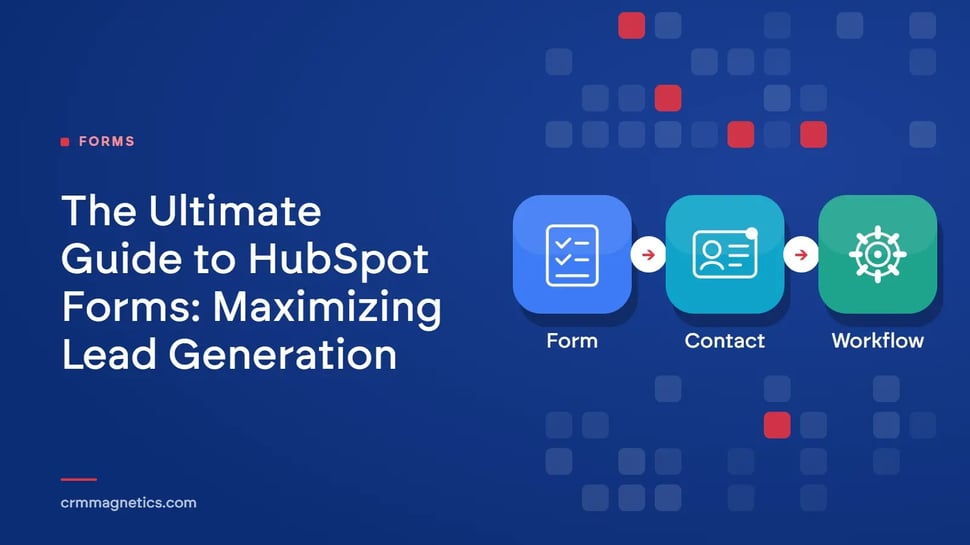
In the fast-paced world of digital marketing, capturing lead data efficiently and effectively is the cornerstone of any successful campaign. While there are countless tools available for generating web forms, HubSpot forms stand out as a premier solution for businesses looking to integrate their lead capture efforts seamlessly with their customer relationship management system. Understanding how to leverage HubSpot forms can dramatically transform your inbound marketing strategy, allowing you to collect actionable data while providing a frictionless experience for your website visitors. Unlike basic HTML forms that simply email you a notification upon submission, HubSpot forms are deeply integrated into a robust marketing ecosystem. They allow marketers to trigger automated workflows, segment audiences dynamically, and track the entire user journey from an anonymous visitor to a loyal customer. By utilizing HubSpot forms, your business can ensure that no lead falls through the cracks and that every interaction is logged accurately for future nurturing.
Why Form Strategy Matters
Forms are the gatekeepers of your digital assets. Whether it is an eBook, a webinar registration, a consultation request, or a simple newsletter sign-up, the form is the point of conversion. A poorly designed form can cause friction, leading to high abandonment rates and lost opportunities. Conversely, a well-optimized form can significantly boost conversion rates. This is where HubSpot forms excel. They offer a drag-and-drop builder that makes it incredibly easy for non-technical users to create, deploy, and manage forms across multiple digital properties. The intuitive interface allows you to add custom fields, establish validation rules, and even customize the styling without ever touching a line of code. Furthermore, HubSpot forms are designed to be responsive out of the box, ensuring that they look great and function perfectly on desktops, tablets, and smartphones alike. In an era where mobile traffic often accounts for more than half of all web visits, having mobile-optimized HubSpot forms is not just a nice-to-have; it is an absolute necessity.
Key Features of HubSpot Forms
One of the most powerful features of HubSpot forms is Progressive Profiling. This feature allows marketers to keep forms short, yet progressively gather deeper insights about a lead over time. If a contact has already filled out a form on your website and provided their name and email address, progressive profiling ensures that they will not be asked for that same information again upon their next form submission. Instead, the HubSpot forms system dynamically replaces those known fields with new questions, such as company size, job title, or specific pain points. This iterative approach to data collection minimizes friction and maximizes conversion rates, while still allowing you to build rich, detailed profiles of your prospects.
Another standout feature is the use of Dependent Fields. With dependent fields in HubSpot forms, you can display specific questions based on the answers provided to previous questions. For example, if a user selects 'United States' from a country dropdown, a dependent field can appear asking for their specific 'State'. If they select 'Canada', it might ask for their 'Province'. This dynamic capability keeps the initial form looking clean and uncluttered while ensuring you capture highly relevant, context-specific information.
In addition, HubSpot forms offer built-in GDPR compliance options, making it easy to add consent checkboxes and legal text to your forms. You can track exactly when and how a contact consented to communication, which is crucial for maintaining compliance with global privacy regulations. Furthermore, the robust analytics dashboard provides real-time insights into view counts, submission rates, and overall conversion performance, enabling marketers to perform data-driven A/B testing and continuous optimization.
Data Comparison: HubSpot Forms vs. Standard Forms
To better understand the value proposition, let us look at a basic comparison of HubSpot forms against standard HTML/PHP form handlers.
|
Feature/Capability |
Standard HTML Forms |
HubSpot Forms |
|
CRM Integration |
Manual setup / custom API required |
Native, automatic sync instantly |
|
Progressive Profiling |
Usually not supported without custom code |
Built-in, drag-and-drop setup |
|
Analytics & Tracking |
Relies entirely on external tools like GA4 |
Comprehensive native analytics |
|
Automation Triggers |
Requires third-party connectors (e.g., Zapier) |
Direct integration with native workflows |
|
Dependent Fields |
Requires custom JavaScript |
Native feature within the form builder |
Best Practices for Maximizing Submissions
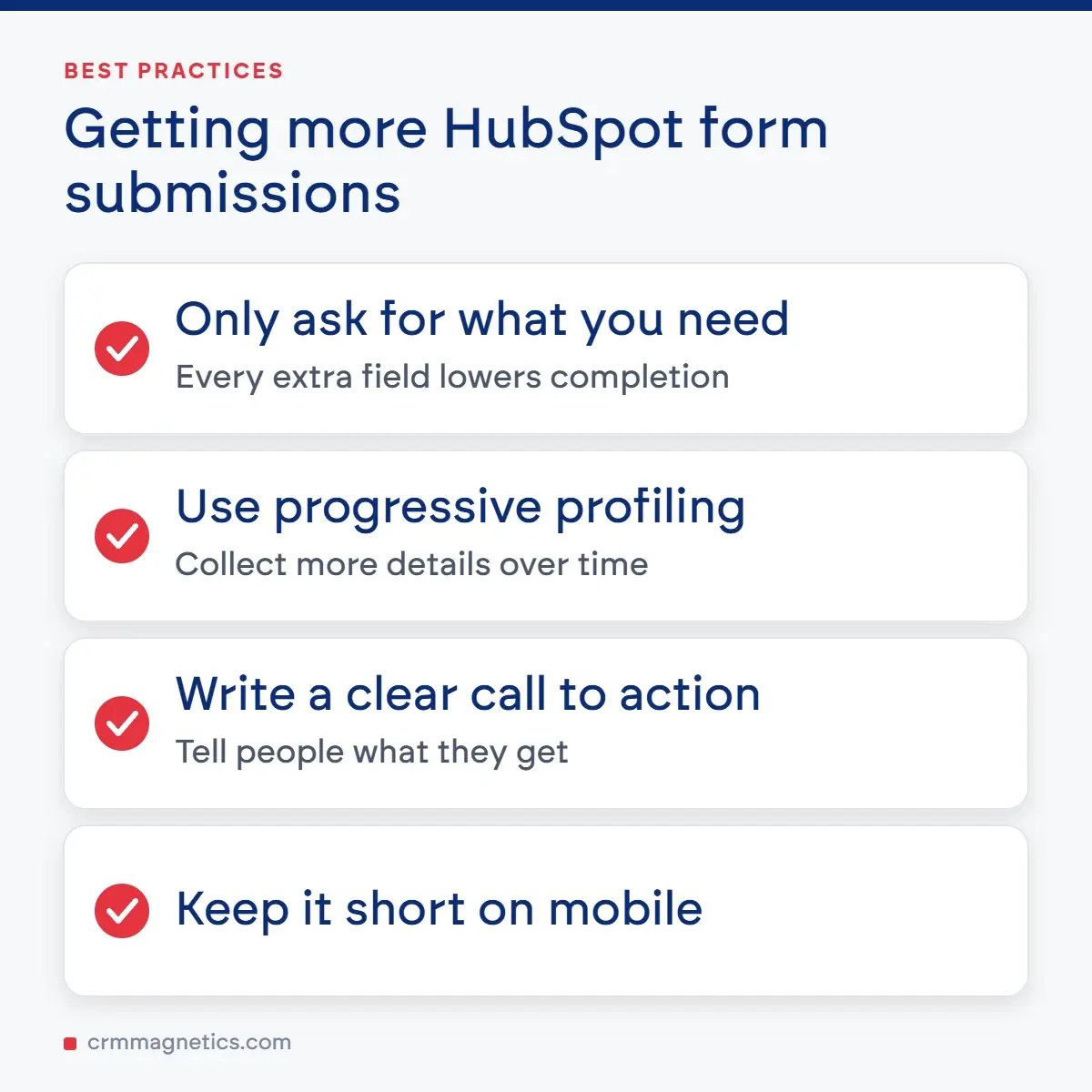
To get the most out of your HubSpot forms, it is essential to adhere to proven conversion rate optimization (CRO) best practices. First, only ask for what you need. Every additional field you add to a form decreases the likelihood of a prospect completing it. Use progressive profiling to gather more information down the line rather than demanding an extensive biography upfront.
Next, ensure that your Call to Action (CTA) is compelling and action-oriented. Instead of using a generic button like 'Submit', use descriptive language that tells the user exactly what they are getting, such as 'Download the Free Guide', 'Get My Consultation', or 'Join the Community'. Clear, value-driven CTA copy can dramatically influence submission rates.
You should also carefully consider where and how the form is placed. HubSpot forms can be embedded directly onto your website pages, loaded via a standalone link, or even configured as pop-up forms (slide-in boxes, exit-intent overlays, or drop-down banners). Pop-up HubSpot forms can be particularly effective for capturing top-of-funnel leads, such as blog subscribers, but they must be deployed thoughtfully to avoid disrupting the user experience.
Always test and iterate. Use the analytics tied to your HubSpot forms to monitor conversion rates. If a form is severely underperforming, consider A/B testing different variables. You might test form length, button colors, headline text, or layout configurations. Continuous monitoring and tweaking are the keys to long-term success.
Automation and Workflows Driven by HubSpot Forms
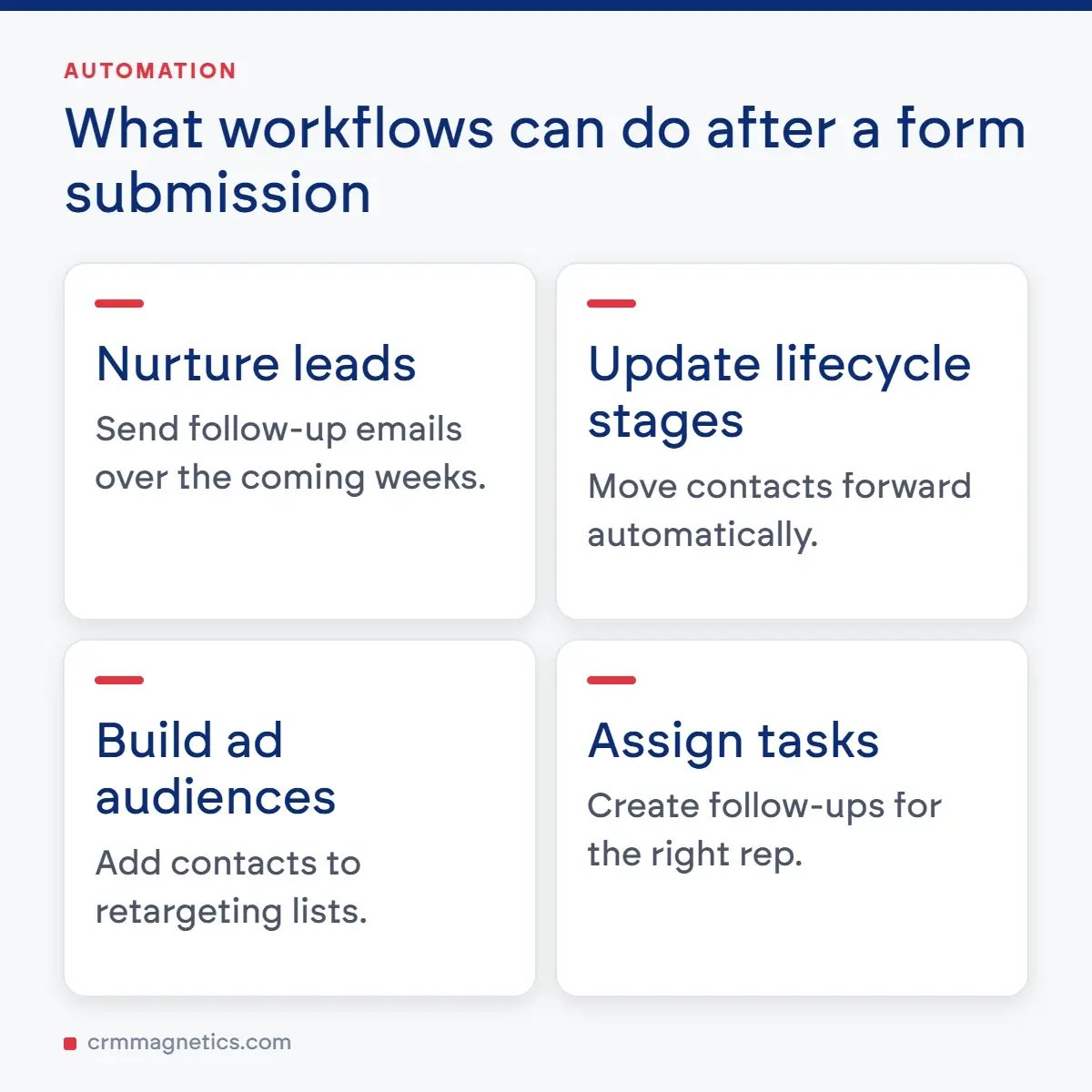
Perhaps the greatest advantage of integrating HubSpot forms into your digital infrastructure is the automation that follows a submission. When a user completes a form, you can trigger a myriad of background actions. For example, the system can automatically send an internal email or Slack notification to the assigned sales representative, alerting them to a warm lead. Simultaneously, the contact can be enrolled in an email nurture sequence that drips educational content over the next several weeks, effectively warming them up until they are ready to make a purchase.
These workflows can also handle administrative tasks, such as updating lifecycle stages, adding contacts to specific retargeting lists for ad campaigns, or assigning tasks within the CRM. Because the HubSpot forms are inherently tied to the contact database, this ensures that your data remains clean, standardized, and immediately actionable.
FAQ
Q1: What are HubSpot forms?
HubSpot forms are customizable data collection tools designed to capture visitor information on a website. Once submitted, the data is automatically synced to the CRM, allowing for seamless lead nurturing, scoring, and management without the need for manual data entry.
Q2: Can I use HubSpot forms on a non-HubSpot website?
Yes. You can easily embed HubSpot forms on almost any external website, including WordPress, Shopify, Squarespace, and custom-built CMS platforms. HubSpot provides an embed code (a short snippet of JavaScript) that you simply paste onto your webpage.
Q3: Are HubSpot forms available in the free version?
Yes, core form-building capabilities are available in the free tier of the CRM. However, more advanced features, such as deep custom styling, progressive profiling, and complex workflow automation triggers, may require a paid Marketing Hub subscription.
Q4: What is progressive profiling in HubSpot forms?
Progressive profiling is an advanced feature that remembers which fields a contact has already filled out in past interactions. Instead of asking for the same information repeatedly (like email or name), the form will dynamically display new, queued questions (such as company size or job role), allowing you to gradually build a richer profile without overwhelming the user.
Q5: How do I style my HubSpot forms to match my website?
You can style your forms in several ways. For users without coding experience, the drag-and-drop builder includes basic styling options for colors, fonts, and button shapes. For more advanced users, you can toggle the form to be "unstyled" and use your own custom CSS on your website to ensure the forms seamlessly blend into your existing brand guidelines.
Q6: Can I perform A/B testing on my forms?
Yes, depending on your subscription level, you can perform A/B testing to compare different form variations. This allows you to test variables like field count, CTA copy, and layout to see which version drives the highest conversion rate.
Leave your thought here
Your email address will not be published. Required fields are marked *